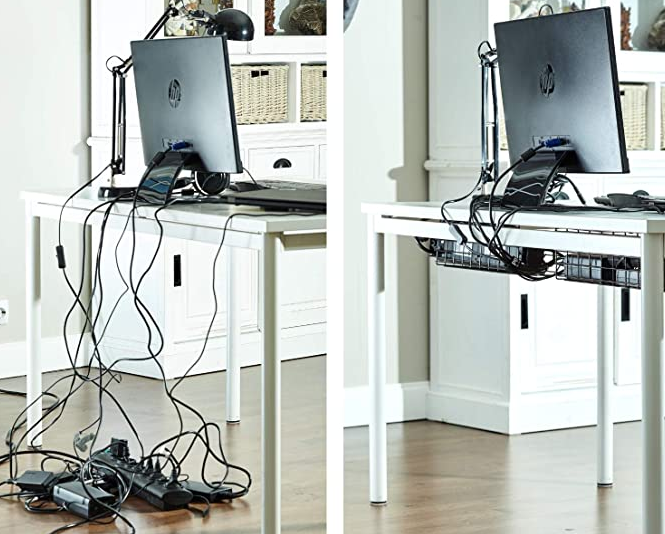
Cable clutter is one of the most overlooked aspects of a workspace. Tangled wires not only reduce aesthetic appeal but also create practical issues—dust accumulation, overheating risks, and difficulty troubleshooting devices.
Improved productivity: Easier access and fewer distractions
Better airflow: Reduces overheating risks
Enhanced safety: Minimizes tripping and electrical hazards
Professional aesthetics: Clean setups improve workspace quality
Simplified maintenance: Faster troubleshooting and upgrades
Step 1: Audit Your Current Setup
Before organizing, identify what you’re working with.
What to Check
Number of devices (PC, monitor, speakers, etc.)
Cable types (power, HDMI, USB, Ethernet)
Power source locations
Cable lengths and condition
Categorize Your Cables
Category
Examples
Power
PSU cables, adapters
Data
USB, HDMI, DisplayPort
Network
Ethernet cables
Peripheral
Keyboard, mouse, speakers
Step 2: Declutter and Remove Unnecessary Cables
Cable management starts with elimination.
Actions to Take
Remove unused chargers and cables
Replace overly long cables with shorter ones
Consolidate duplicate connections
Switch to wireless peripherals where practical
Step 3: Plan Your Cable Routing
A structured routing plan prevents future mess.
Routing Principles
Shortest path: Avoid excess slack
Hidden paths: Behind desk or under tabletop
Separation: Keep power and data cables apart
Accessibility: Leave room for adjustments
Step 4: Use Essential Cable Management Tools
Must-Have Tools
Tool
Purpose
Cable clips
Secure cables along edges
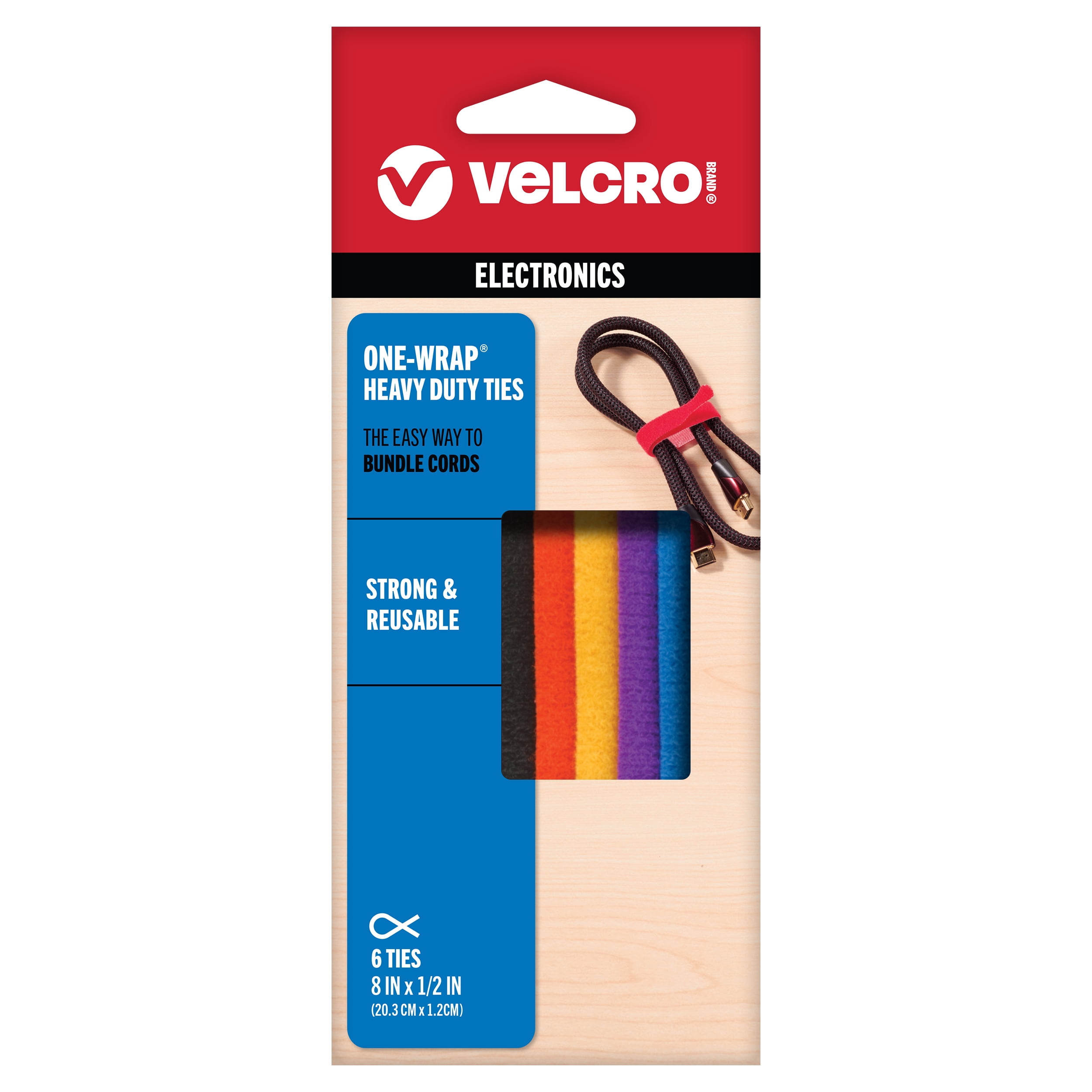
Velcro ties
Bundle and organize wires
Cable sleeves
Combine multiple cables into one line
Cable trays
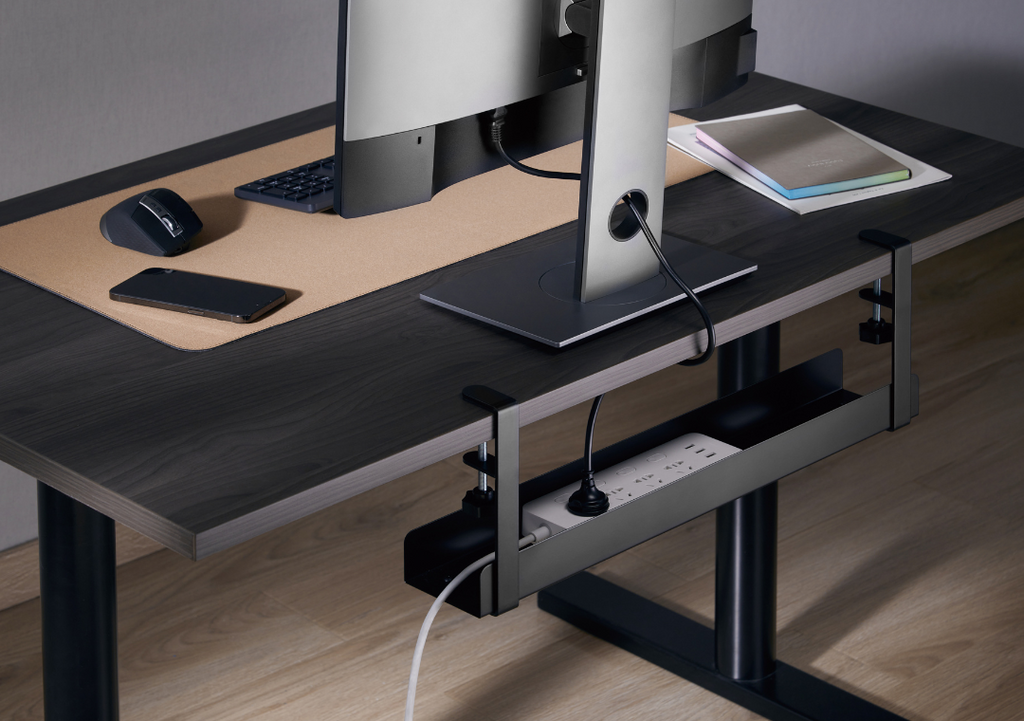
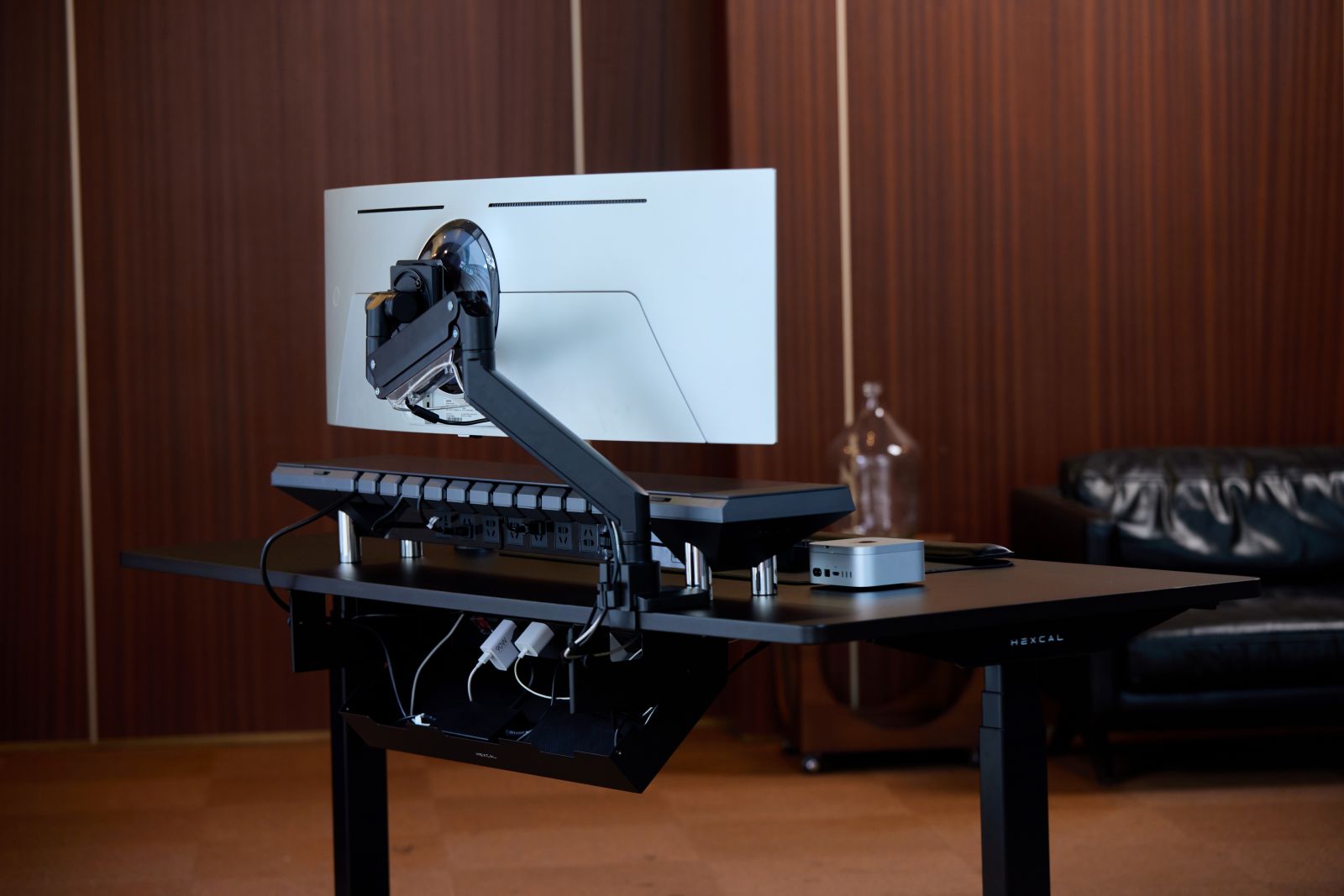
Hide power strips under desk
Adhesive mounts
Route cables without drilling
Optional Additions
Cable boxes (hide power strips)
Raceways (wall-mounted cable channels)
Label tags (identify cables easily)
Step 5: Mount Your Power Strip Properly
The power strip is the central hub of your cable system.
Best Placement
Under the desk (mounted)
Back of desk frame
Inside a cable tray
Why This Matters
Reduces visible cable clutter
Keeps cables off the floor
Improves safety and accessibility
Step 6: Bundle Cables by Function
Grouping cables improves organization and troubleshooting.
Recommended Grouping
Power cables together
Monitor/display cables together
Peripheral cables together
Best Practices
Use Velcro ties instead of zip ties (reusable)
Avoid over-tight bundling (prevents cable damage)
Leave slight slack for flexibility
Step 7: Route Cables Along Defined Paths
Common Routing Paths
Along desk edges
Behind monitor arms
Under tabletop using trays
Along legs of the desk
Key Tip
Follow straight lines and right angles for a cleaner look.
Step 8: Label Everything
Labeling is often skipped but highly valuable.
What to Label
Power adapters
Monitor cables
USB hubs
Extension cords
Benefits
Faster troubleshooting
Easier upgrades
Reduced confusion
Step 9: Manage Excess Cable Length
Extra cable length is a major source of clutter.
Solutions
Use shorter cables
Coil excess length neatly
Store loops inside cable trays or boxes
Avoid
Letting cables hang freely
Tight coiling (can damage wires over time)
Step 10: Optimize for Airflow and Safety
Cable placement affects device performance.
Safety Guidelines
Keep cables away from heat sources
Avoid blocking ventilation areas
Prevent cables from touching the floor where possible
Use surge protectors for sensitive equipment
Step 11: Maintain and Update Regularly
Cable management is not a one-time task.
Monthly Checklist
Remove unused cables
Check for wear or damage
Adjust routing after adding devices
Clean dust buildup
Cable Management Setup Examples
Minimal Setup (Beginner)
Cable clips + Velcro ties
Basic routing behind desk
No drilling required
Intermediate Setup
Under-desk cable tray
Mounted power strip
Cable sleeves
Advanced Setup
Fully hidden cables
Wall raceways
Custom cable lengths
Integrated desk solutions
Cost Breakdown (2026)
Item
Price Range
Cable clips
$5–$15
Velcro ties
$5–$20
Cable sleeves
$10–$25
Cable tray
$20–$60
Cable box
$15–$40
Estimated Total Setup Cost: $30–$120
Common Mistakes to Avoid
Using permanent zip ties (limits flexibility)
Ignoring airflow considerations
Overloading power strips
Mixing power and data cables excessively
Skipping labeling
Pros and Cons of Proper Cable Management
Pros
Cleaner workspace
Easier device management
Improved safety
Better airflow
Cons
Initial setup time
Small upfront cost
Requires periodic maintenance
Who Should Optimize Cable Management?
Ideal For
Remote workers
Gamers and streamers
Content creators
Office professionals
Less Critical For
Temporary setups
Minimal device users
Expert Tips for a Cleaner Setup
Mount everything possible (don’t leave cables on the floor)
Use black or matching cables for visual consistency
Keep a small slack loop for each cable
Standardize cable lengths
Upgrade to a desk with built-in cable management if possible
Final Verdict
Effective cable management is a foundational part of any efficient workspace. With minimal investment and a structured approach, even complex setups can be transformed into clean, organized systems.
The key is not perfection but consistency, planning, and scalability. A well-managed cable system saves time, reduces frustration, and enhances both functionality and aesthetics.
Overall Rating (Cable Management Impact)
Category
Rating (Out of 5)
Ease of Setup
4.5
Cost Efficiency
4.7
Visual Improvement
4.8
Practical Benefits
4.6
Maintenance
4.2
Overall Score: 4.6 / 5
FAQ
What is the easiest way to manage desk cables?
Start with Velcro ties and cable clips, then add a cable tray for better organization.
Are cable sleeves worth it?
Yes, especially for bundling multiple cables into a single clean line.
How do I hide cables completely?
Use under-desk trays, wall raceways, and cable boxes.
Is wireless better than cable management?
Wireless reduces clutter but may compromise performance for some devices.
How often should I reorganize cables?
Every 1–3 months or whenever you add/remove devices.
Best Review
“Turning clicks into clients with AI‑supercharged web design & marketing.”
Let’s build your future site ➔
Passionate Web Developer, Freelancer, and Entrepreneur dedicated to creating innovative and user-friendly web solutions. With years of experience in the industry, I specialize in designing and developing websites that not only look great but also perform exceptionally well.