Using a tablet as a second monitor is one of the most effective ways to expand your workspace without investing in an additional display. Whether you’re working remotely, editing content, coding, or multitasking, a dual-screen setup can significantly improve efficiency.
Increased productivity: More screen space for multitasking
Portability: Ideal for travel and small desks
Cost-effective: No need for a dedicated monitor
Flexible workflows: Extend or mirror displays
Common Use Cases
Use Case
Secondary Screen Purpose
Remote work
Email, Slack, dashboards
Content creation
Timeline, tools, preview window
Programming
Code editor + documentation
Trading
Charts and analytics
Students
Notes + lectures
Method 1: Use Built-in Features (Best for Apple Ecosystem)
Apple Sidecar (Mac + iPad)
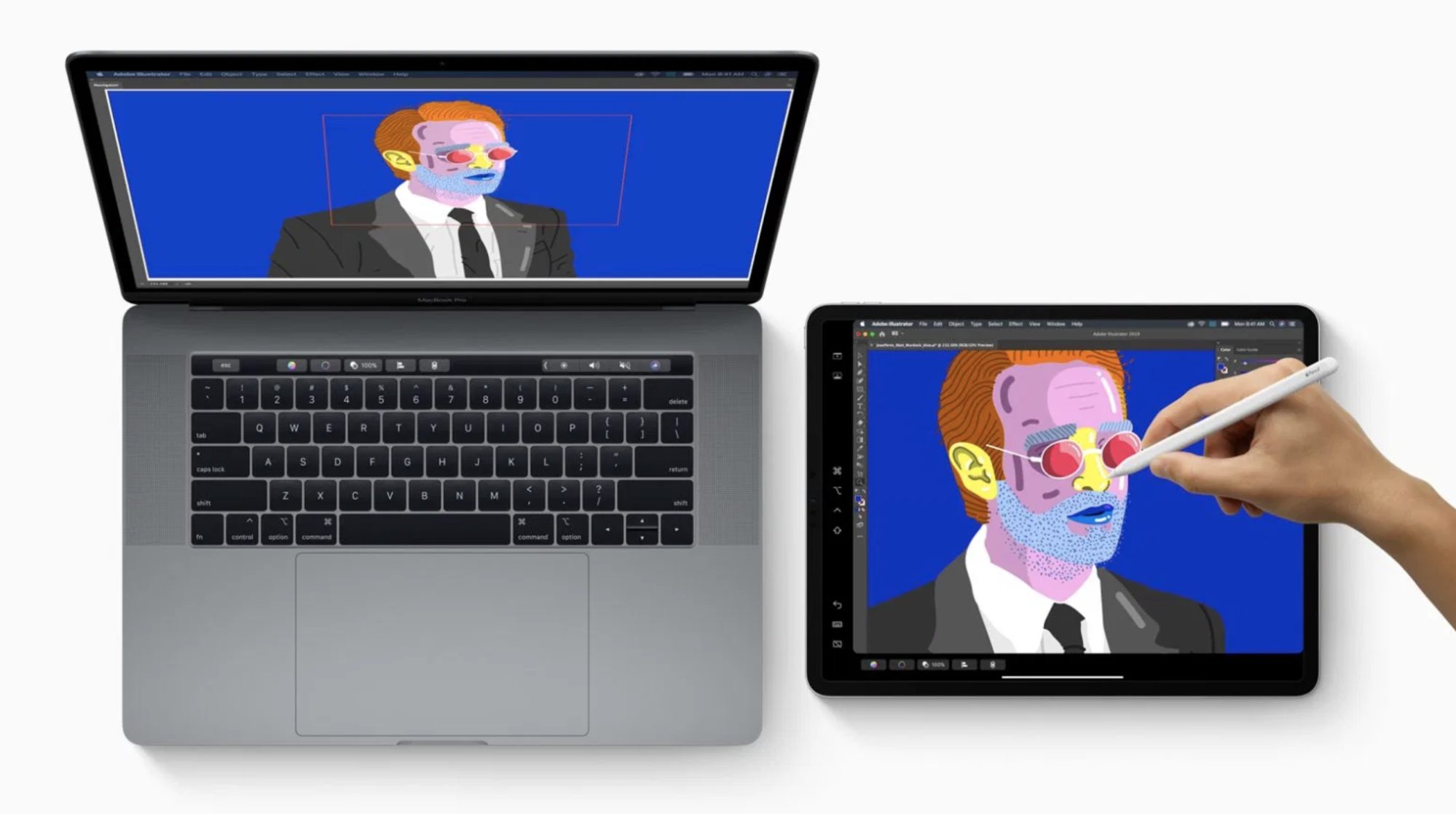
Apple offers a native solution called Sidecar, allowing you to use an iPad as a second display for a Mac.
Requirements
macOS Catalina or later
iPadOS 13 or later
Same Apple ID on both devices
Wi-Fi, Bluetooth, and Handoff enabled
How to Set It Up
Open Display Settings on your Mac
Select your iPad under available displays
Choose Extend Display or Mirror Display
Arrange screen positions
Advantages
Seamless integration
Supports Apple Pencil input
Low latency
Limitations
Apple-only ecosystem
Limited customization compared to third-party tools
Method 2: Use Third-Party Apps (Cross-Platform)
If you’re using Windows, Android, or mixed devices, third-party apps are the most flexible option.
Popular Apps (2026)
App
Platform Support
Connection Type
Best For
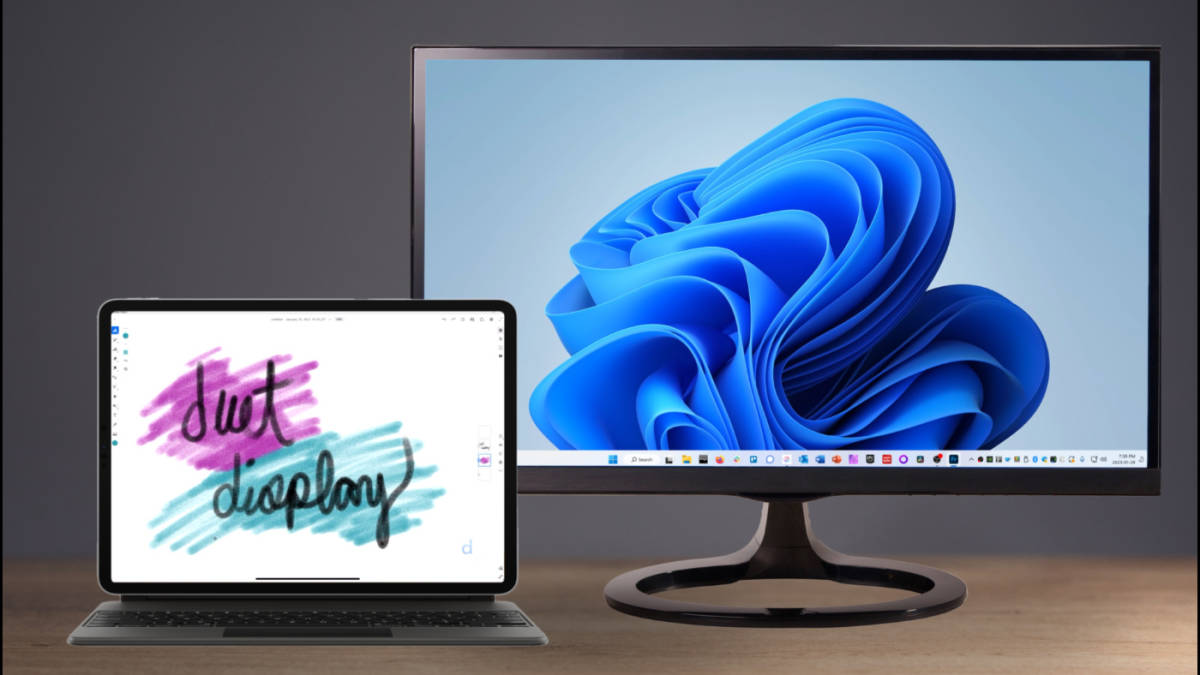
Duet Display
Windows, macOS, iOS
Wired/Wireless
Performance + reliability
Spacedesk
Windows, Android
Wireless
Free solution
Splashtop Wired XDisplay
Windows, macOS, iOS
Wired
Low latency
iDisplay
Windows, macOS, Android
Wireless
Multi-platform
General Setup Steps
Install the app on your computer
Install the companion app on your tablet
Connect via USB or Wi-Fi
Launch the app on both devices
Configure display settings
Wired vs Wireless Comparison
Feature
Wired Connection
Wireless Connection
Latency
Very low
Moderate
Stability
High
Depends on Wi-Fi
Setup ease
Moderate
Easy
Portability
Limited
High
Recommendation: Use wired for performance-critical tasks (design, editing).
Method 3: Use Built-in Windows Wireless Display
Windows offers limited native support for wireless display extension.
Requirements
Windows 10/11 PC
Tablet with Miracast support
Setup Steps
Open Project Settings (Win + P)
Select Connect to a wireless display
Choose your tablet
Set to Extend mode
Limitations
Not all tablets support Miracast
Higher latency than dedicated apps
Step-by-Step Setup Example (Best Universal Method)
Using Duet Display
Install Duet on your PC/Mac
Install Duet app on your tablet
Connect tablet via USB
Launch both apps
Configure resolution and orientation
Recommended Settings
Resolution: Match your tablet’s native resolution
Frame rate: 30–60 FPS
Display mode: Extended
Optimizing Your Dual-Screen Workflow
Best Layout Practices
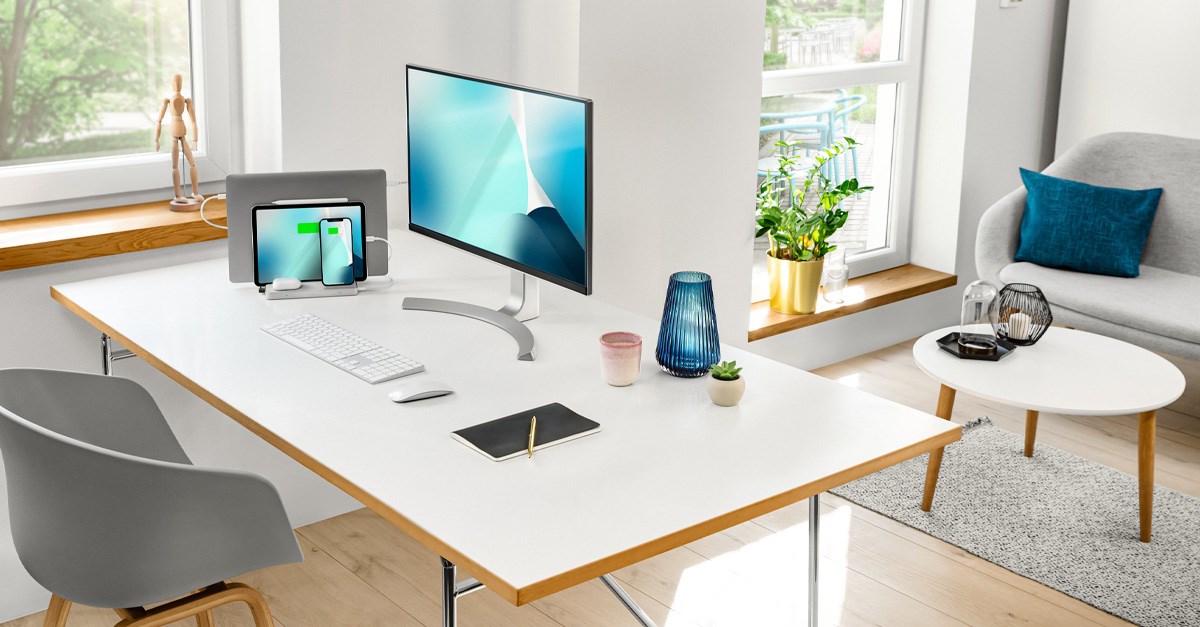
Place tablet to the side or below your main screen
Match screen height for ergonomic alignment
Use a tablet stand for stability
What to Put on Your Second Screen
Task Type
Ideal Tablet Use
Communication
Email, chat apps
Reference
Docs, research, notes
Tools
Photoshop panels, timelines
Monitoring
System stats, dashboards
Performance Optimization Tips
Use USB connection for better performance
Close unused apps to reduce lag
Use 5GHz Wi-Fi if wireless
Keep software updated
Lower resolution if lag occurs
Common Issues and Fixes
1. Lag or Delay
Switch to wired connection
Reduce resolution
2. Tablet Not Detected
Restart both devices
Check firewall or permissions
3. Screen Flickering
Update drivers
Reconnect the session
4. Connection Drops
Improve Wi-Fi signal
Disable power-saving modes
Tablet Compatibility Guide
Tablet Type
Compatibility Level
Notes
iPad
Excellent
Best with Sidecar or Duet
Android Tablets
Good
Works with Spacedesk, iDisplay
Windows Tablets
Moderate
Native + third-party support
Fire Tablets
Limited
Requires workarounds
Cost Breakdown (2026)
Option
Cost Range
Built-in (Sidecar)
Free
Spacedesk
Free
Duet Display
$10–$30
Splashtop Wired XDisplay
$10–$20
Pros and Cons
Pros
Affordable dual-screen setup
Portable and flexible
Easy to set up with modern tools
Cons
Possible latency (wireless)
Smaller screen than a monitor
App dependency for non-Apple setups
Who Should Use This Setup?
Ideal For
Remote workers
Students
Designers and editors
Developers
Less Ideal For
High-end gaming setups
Color-critical professional editing (limited accuracy)
Expert Tips for Maximum Productivity
Use keyboard shortcuts to move windows quickly
Dedicate tablet to a single purpose (avoid clutter)
Use dark mode for consistency across screens
Pair with a tablet stand or mount
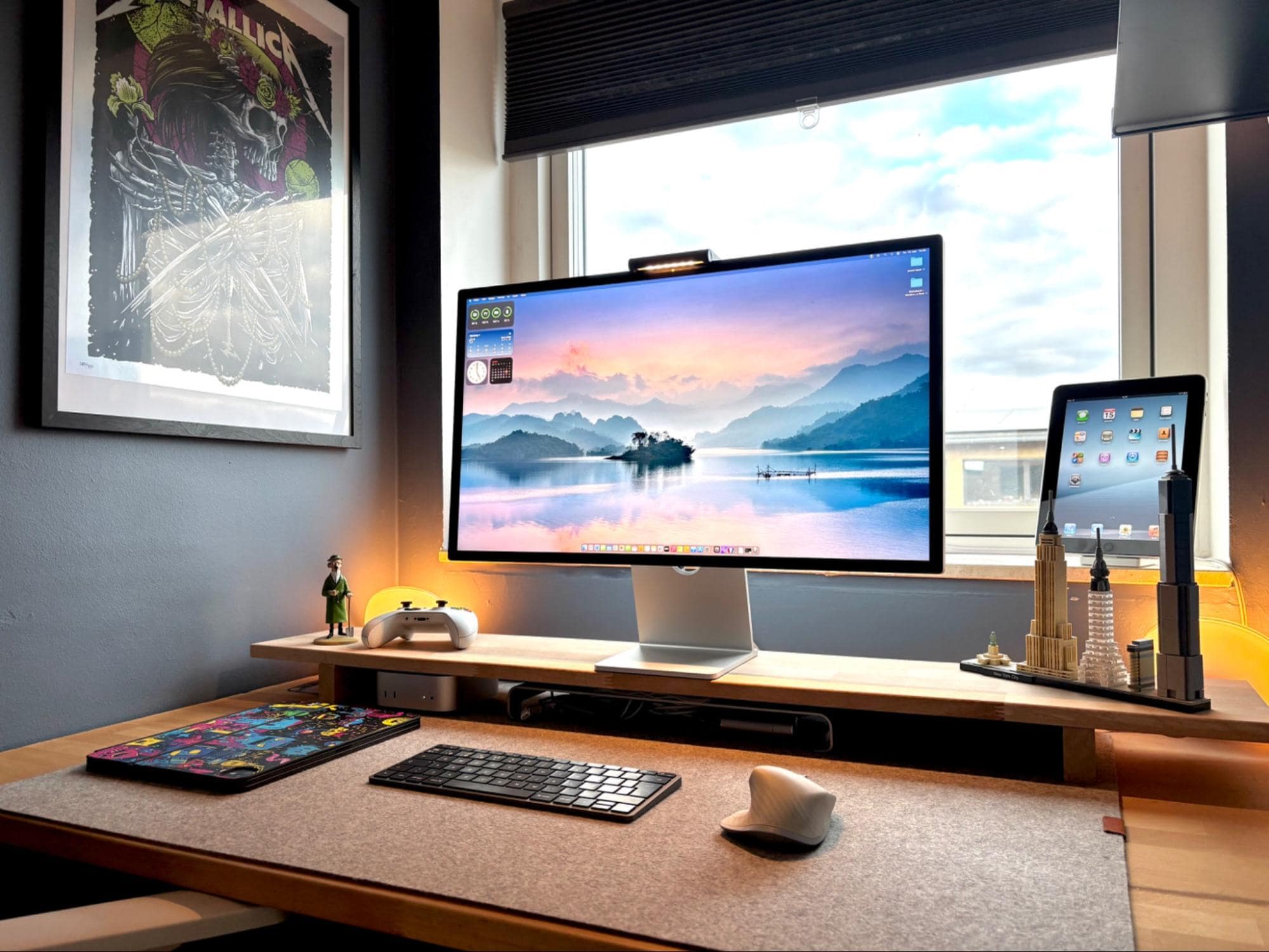
Combine with a monitor + tablet triple setup for advanced workflows
Comparison: Tablet vs Traditional Second Monitor
Feature
Tablet
Monitor
Cost
Low
Medium–High
Portability
High
Low
Screen Size
Small
Large
Setup Complexity
Medium
Low
Flexibility
High
Moderate
Final Verdict
Using a tablet as a second monitor is a practical, cost-effective way to boost productivity in 2026. For Apple users, Sidecar offers the most seamless experience, while third-party apps like Duet Display and Spacedesk provide strong cross-platform alternatives.
For best results, prioritize wired connections, proper positioning, and focused use cases. While not a full replacement for a dedicated monitor, tablets offer unmatched flexibility for portable and hybrid work environments.
Overall Rating (Tablet as Second Monitor)
Category
Rating (Out of 5)
Ease of Setup
4.5
Cost Efficiency
4.8
Performance
4.2
Flexibility
4.7
Portability
5.0
Overall Score: 4.6 / 5
FAQ
Can I use any tablet as a second monitor?
Most tablets work with third-party apps, but compatibility varies.
Is a wired connection better than wireless?
Yes, it offers lower latency and better stability.
Does this work with Windows and Android?
Yes, using apps like Spacedesk or Duet Display.
Can I use touch input on the tablet?
Yes, depending on the app and device.
Is it good for gaming?
Not ideal due to latency; better for productivity tasks.
Best Review
“Turning clicks into clients with AI‑supercharged web design & marketing.”
Let’s build your future site ➔
Passionate Web Developer, Freelancer, and Entrepreneur dedicated to creating innovative and user-friendly web solutions. With years of experience in the industry, I specialize in designing and developing websites that not only look great but also perform exceptionally well.