Independent reviews. No paid rankings. No sponsored placements.

Overview
Using a tablet as a second monitor is one of the most effective ways to expand your workspace without investing in an additional display. Whether you’re working remotely, editing content, coding, or multitasking, a dual-screen setup can significantly improve efficiency.
Modern tablets—combined with software and built-in OS features—make this setup easier than ever in 2026. This guide explains all methods (wired, wireless, native, and third-party) so you can choose the best option for your workflow.
Why Use a Tablet as a Second Monitor?
Key Benefits
- Increased productivity: More screen space for multitasking
- Portability: Ideal for travel and small desks
- Cost-effective: No need for a dedicated monitor
- Flexible workflows: Extend or mirror displays
Common Use Cases
| Use Case | Secondary Screen Purpose |
|---|---|
| Remote work | Email, Slack, dashboards |
| Content creation | Timeline, tools, preview window |
| Programming | Code editor + documentation |
| Trading | Charts and analytics |
| Students | Notes + lectures |
Method 1: Use Built-in Features (Best for Apple Ecosystem)

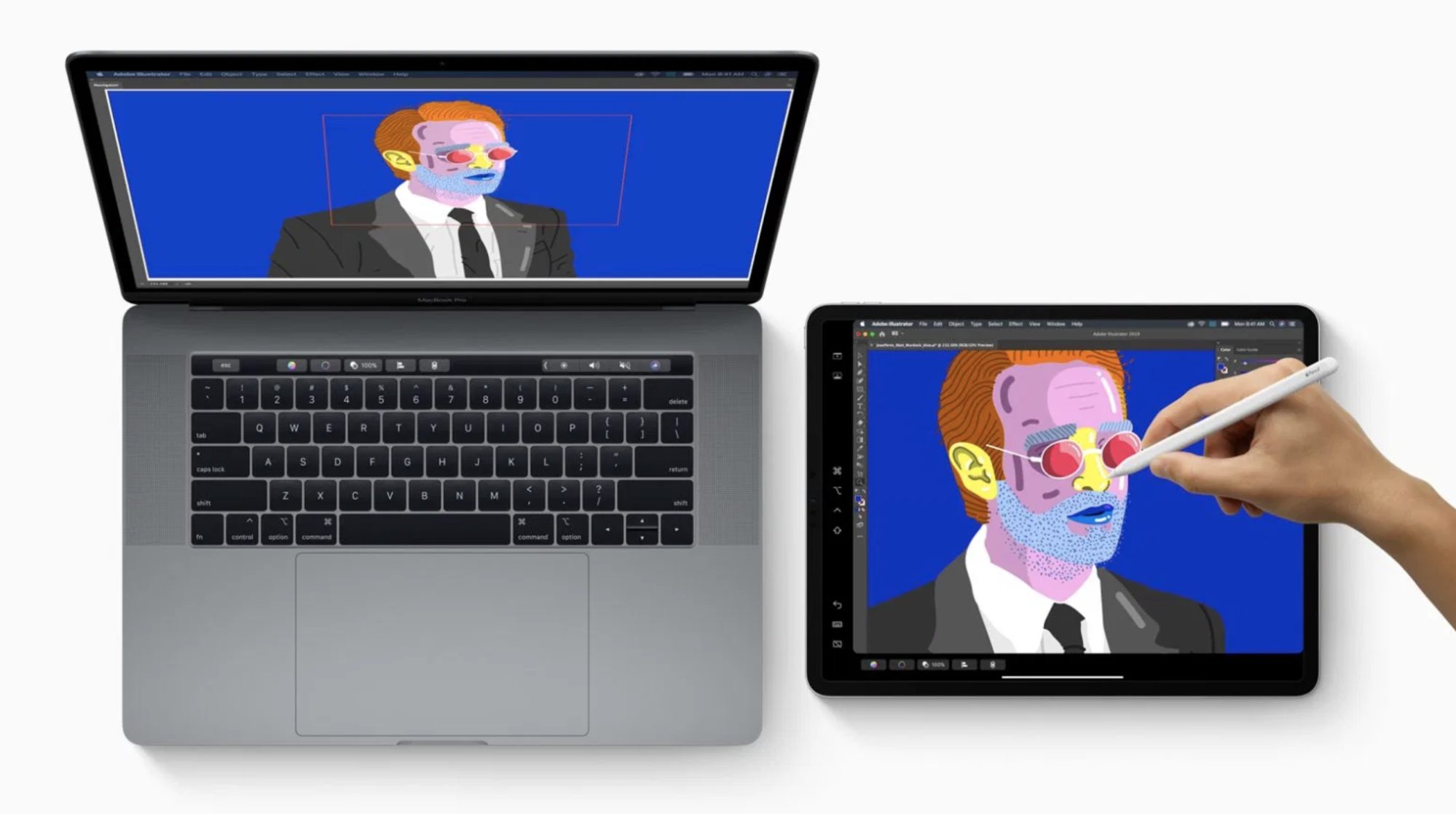
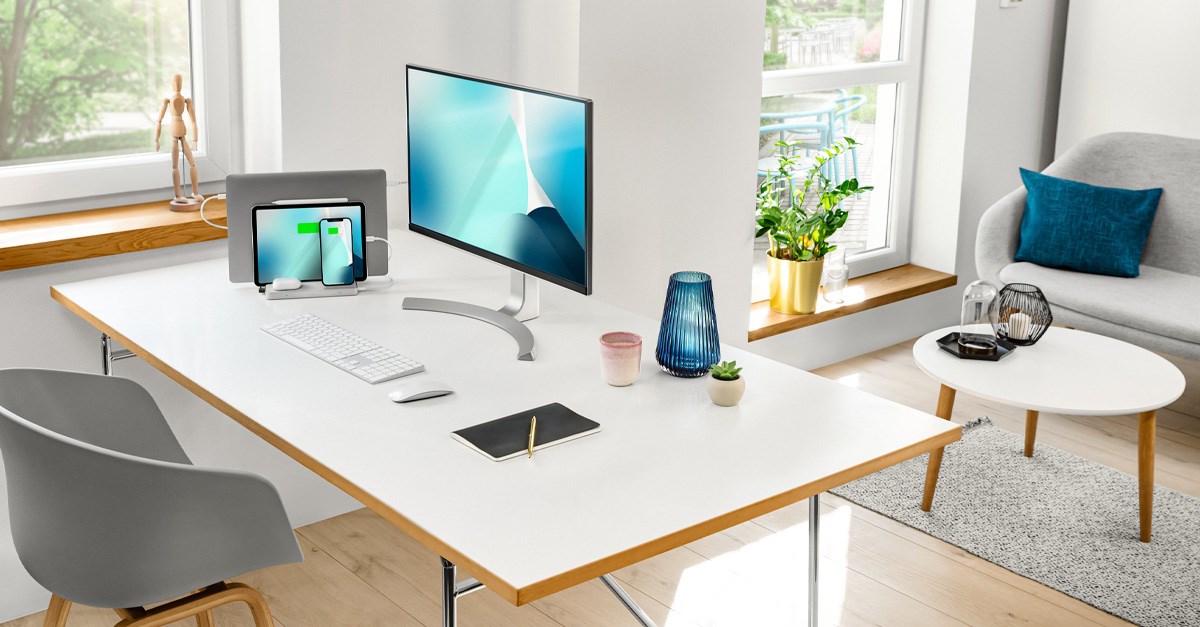
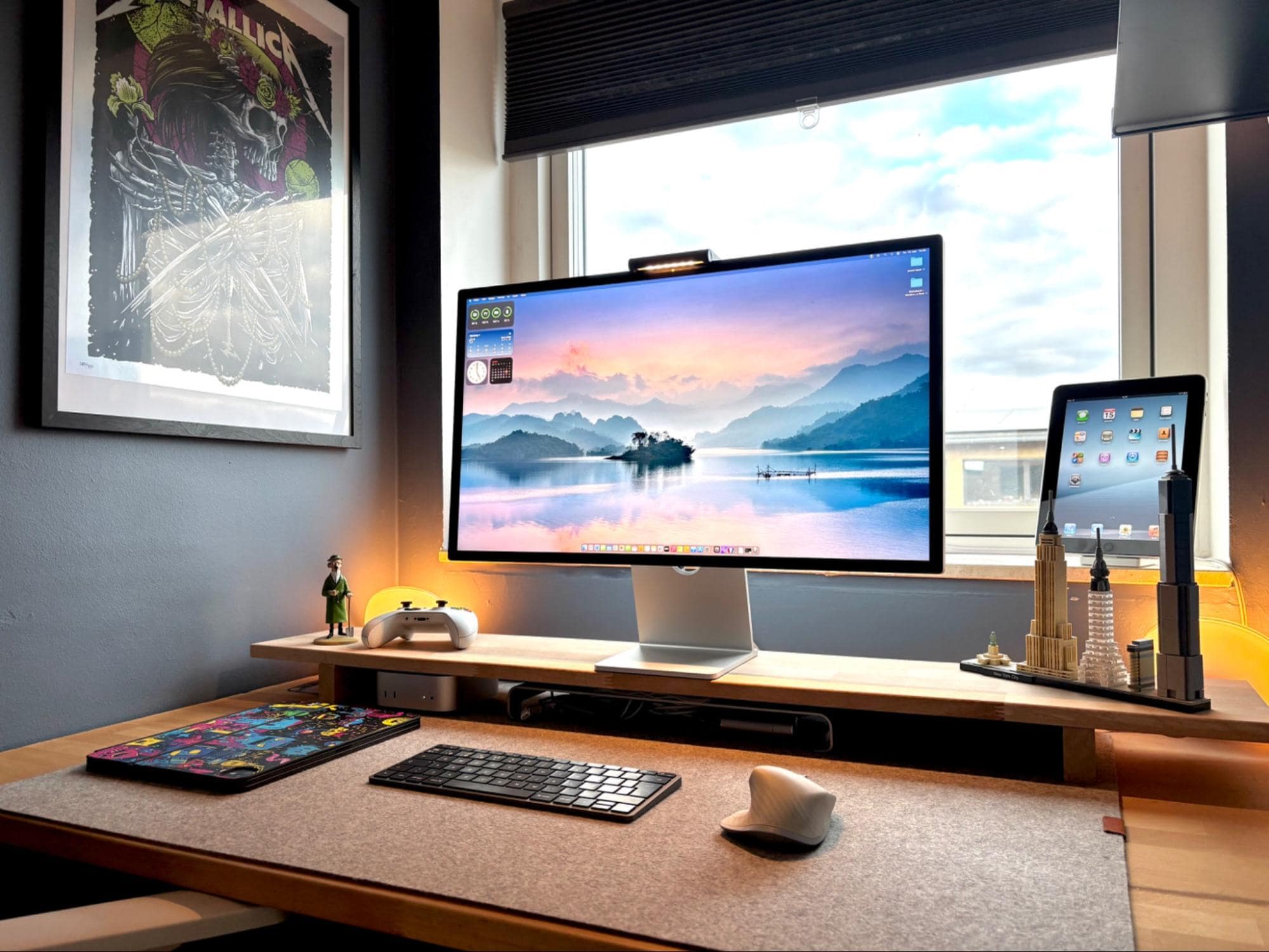
Apple Sidecar (Mac + iPad)
Apple offers a native solution called Sidecar, allowing you to use an iPad as a second display for a Mac.
Requirements
- macOS Catalina or later
- iPadOS 13 or later
- Same Apple ID on both devices
- Wi-Fi, Bluetooth, and Handoff enabled
How to Set It Up
- Open Display Settings on your Mac
- Select your iPad under available displays
- Choose Extend Display or Mirror Display
- Arrange screen positions
Advantages
- Seamless integration
- Supports Apple Pencil input
- Low latency
Limitations
- Apple-only ecosystem
- Limited customization compared to third-party tools
Method 2: Use Third-Party Apps (Cross-Platform)
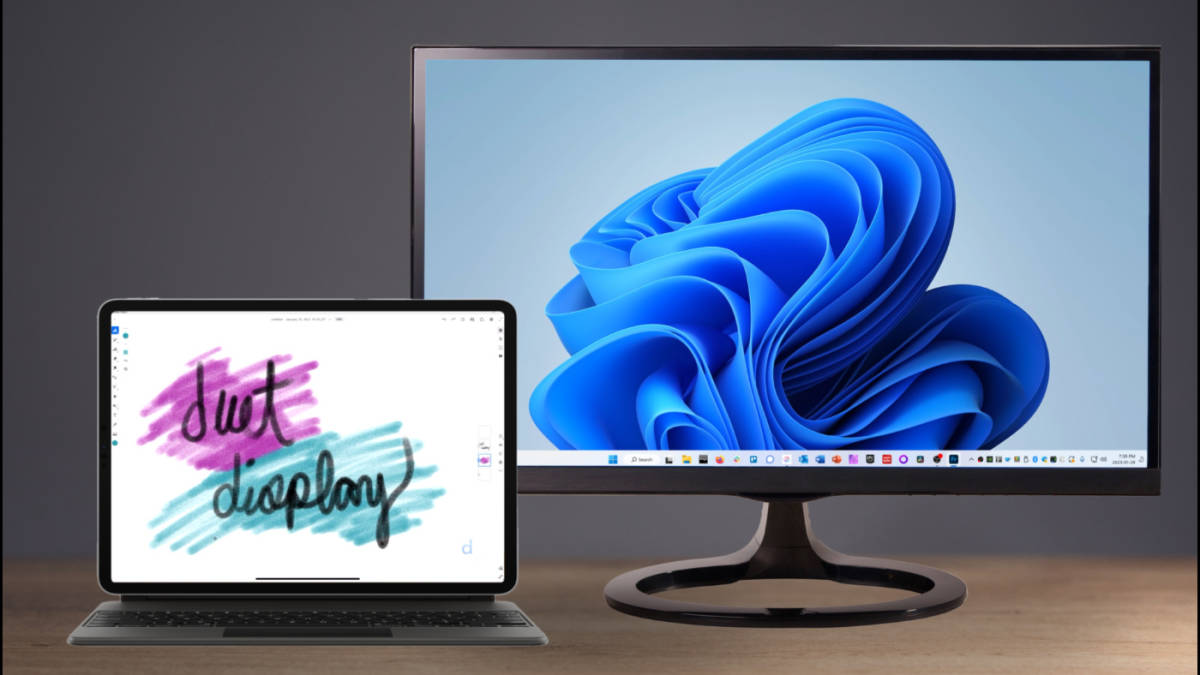


If you’re using Windows, Android, or mixed devices, third-party apps are the most flexible option.
Popular Apps (2026)
| App | Platform Support | Connection Type | Best For |
|---|---|---|---|
| Duet Display | Windows, macOS, iOS | Wired/Wireless | Performance + reliability |
| Spacedesk | Windows, Android | Wireless | Free solution |
| Splashtop Wired XDisplay | Windows, macOS, iOS | Wired | Low latency |
| iDisplay | Windows, macOS, Android | Wireless | Multi-platform |
General Setup Steps
- Install the app on your computer
- Install the companion app on your tablet
- Connect via USB or Wi-Fi
- Launch the app on both devices
- Configure display settings
Wired vs Wireless Comparison
| Feature | Wired Connection | Wireless Connection |
|---|---|---|
| Latency | Very low | Moderate |
| Stability | High | Depends on Wi-Fi |
| Setup ease | Moderate | Easy |
| Portability | Limited | High |
Recommendation: Use wired for performance-critical tasks (design, editing).
Method 3: Use Built-in Windows Wireless Display
Windows offers limited native support for wireless display extension.
Requirements
- Windows 10/11 PC
- Tablet with Miracast support
Setup Steps
- Open Project Settings (Win + P)
- Select Connect to a wireless display
- Choose your tablet
- Set to Extend mode
Limitations
- Not all tablets support Miracast
- Higher latency than dedicated apps
Step-by-Step Setup Example (Best Universal Method)
Using Duet Display
- Install Duet on your PC/Mac
- Install Duet app on your tablet
- Connect tablet via USB
- Launch both apps
- Configure resolution and orientation
Recommended Settings
- Resolution: Match your tablet’s native resolution
- Frame rate: 30–60 FPS
- Display mode: Extended
Optimizing Your Dual-Screen Workflow
Best Layout Practices
- Place tablet to the side or below your main screen
- Match screen height for ergonomic alignment
- Use a tablet stand for stability
What to Put on Your Second Screen
| Task Type | Ideal Tablet Use |
|---|---|
| Communication | Email, chat apps |
| Reference | Docs, research, notes |
| Tools | Photoshop panels, timelines |
| Monitoring | System stats, dashboards |
Performance Optimization Tips
- Use USB connection for better performance
- Close unused apps to reduce lag
- Use 5GHz Wi-Fi if wireless
- Keep software updated
- Lower resolution if lag occurs
Common Issues and Fixes
1. Lag or Delay
- Switch to wired connection
- Reduce resolution
2. Tablet Not Detected
- Restart both devices
- Check firewall or permissions
3. Screen Flickering
- Update drivers
- Reconnect the session
4. Connection Drops
- Improve Wi-Fi signal
- Disable power-saving modes
Tablet Compatibility Guide
| Tablet Type | Compatibility Level | Notes |
|---|---|---|
| iPad | Excellent | Best with Sidecar or Duet |
| Android Tablets | Good | Works with Spacedesk, iDisplay |
| Windows Tablets | Moderate | Native + third-party support |
| Fire Tablets | Limited | Requires workarounds |
Cost Breakdown (2026)
| Option | Cost Range |
|---|---|
| Built-in (Sidecar) | Free |
| Spacedesk | Free |
| Duet Display | $10–$30 |
| Splashtop Wired XDisplay | $10–$20 |
Pros and Cons
Pros
- Affordable dual-screen setup
- Portable and flexible
- Easy to set up with modern tools
Cons
- Possible latency (wireless)
- Smaller screen than a monitor
- App dependency for non-Apple setups
Who Should Use This Setup?
Ideal For
- Remote workers
- Students
- Designers and editors
- Developers
Less Ideal For
- High-end gaming setups
- Color-critical professional editing (limited accuracy)
Expert Tips for Maximum Productivity
- Use keyboard shortcuts to move windows quickly
- Dedicate tablet to a single purpose (avoid clutter)
- Use dark mode for consistency across screens
- Pair with a tablet stand or mount
- Combine with a monitor + tablet triple setup for advanced workflows
Comparison: Tablet vs Traditional Second Monitor
| Feature | Tablet | Monitor |
|---|---|---|
| Cost | Low | Medium–High |
| Portability | High | Low |
| Screen Size | Small | Large |
| Setup Complexity | Medium | Low |
| Flexibility | High | Moderate |
Final Verdict
Using a tablet as a second monitor is a practical, cost-effective way to boost productivity in 2026. For Apple users, Sidecar offers the most seamless experience, while third-party apps like Duet Display and Spacedesk provide strong cross-platform alternatives.
For best results, prioritize wired connections, proper positioning, and focused use cases. While not a full replacement for a dedicated monitor, tablets offer unmatched flexibility for portable and hybrid work environments.
Overall Rating (Tablet as Second Monitor)
| Category | Rating (Out of 5) |
|---|---|
| Ease of Setup | 4.5 |
| Cost Efficiency | 4.8 |
| Performance | 4.2 |
| Flexibility | 4.7 |
| Portability | 5.0 |
Overall Score: 4.6 / 5
FAQ
Can I use any tablet as a second monitor?
Most tablets work with third-party apps, but compatibility varies.
Is a wired connection better than wireless?
Yes, it offers lower latency and better stability.
Does this work with Windows and Android?
Yes, using apps like Spacedesk or Duet Display.
Can I use touch input on the tablet?
Yes, depending on the app and device.
Is it good for gaming?
Not ideal due to latency; better for productivity tasks.